
Forum
How to Free Up Storage on Mobile Phones Without Deleting Photos

Quote from RTechReview on March 15, 2026, 11:43 pmMany smartphone users notice that their phone storage fills up quickly even when they don’t store many photos or videos. When checking the storage breakdown, most of the space is often occupied by apps rather than media files.
Popular apps like Instagram, YouTube, Netflix, and Microsoft Outlook can sometimes consume 1 GB to 5 GB of storage, even if you have not downloaded any offline videos.
This happens because apps store different types of background data such as cache files, temporary media, and synced content. Understanding how this works can help you manage mobile storage more efficiently and free up unnecessary space.
Why Apps Take So Much Storage on Mobile Phones
Apps store various files on your device to improve performance and provide a smoother user experience. Over time, these files accumulate and occupy significant storage.
App Cache and Temporary Files
Most apps create cache files so that frequently used data loads faster.
For example:
Instagram stores thumbnails, reels previews, and profile pictures.
YouTube stores video thumbnails and playback buffers.
Netflix stores preview clips and app interface data.
Outlook stores synchronized emails and attachments locally.
These cache files gradually increase in size and can grow to hundreds of megabytes or even several gigabytes.
Background Media Preloading
Many social media and streaming apps preload content automatically to improve the user experience.
Examples include:
Instagram preloading reels and posts
YouTube loading video previews
Netflix storing preview trailers
While this helps apps open content faster, it also uses additional storage space.
Offline Data and Smart Downloads
Some apps automatically download certain content to improve offline usage.
For example:
YouTube may temporarily store streaming data.
Netflix may enable Smart Downloads to automatically download episodes.
Email apps download attachments for offline access.
Even if you did not manually download files, these features can still consume significant storage over time.
Larger App Sizes After Updates
Modern mobile apps include many advanced features such as:
AI-based recommendations
High-resolution interface graphics
Messaging features
Offline capabilities
Because of this, many apps today have base installation sizes between 200 MB and 800 MB, even before additional data is stored.
How to Check Which Apps Are Using the Most Storage
If your phone storage is almost full, the first step is to identify which apps are consuming the most space.
Steps to Check Storage Usage on Android
Open Settings
Tap Storage
Select Apps
You will then see details such as:
App size
User data
Cache size
Sorting apps by size makes it easier to identify which apps are using the most storage.
Best Ways to Free Up Storage on Your Phone
There are several effective ways to recover storage space without deleting important files.
Clear App Cache
Clearing cache removes temporary files without deleting your account data.
Steps:
Open Settings
Tap Apps
Select the app
Tap Storage
Tap Clear Cache
This simple step can free hundreds of megabytes instantly.
Clear App Data (If Necessary)
If an app is using several gigabytes of storage, clearing its data may help.
Steps:
Open Settings
Go to Apps
Select the app
Tap Clear Data
Note that this will reset the app and log you out, so you will need to sign in again.
Delete Unused Apps
Many users install apps they rarely use. Examples include:
Games
Shopping apps
Food delivery apps
Travel apps
Removing unused apps can free several gigabytes of storage.
Disable Automatic Downloads
Some apps automatically download content.
For example:
YouTube
Profile → Settings → Downloads → Disable Smart DownloadsNetflix
App Settings → Downloads → Disable Smart DownloadsDisabling these options helps prevent unnecessary storage usage.
Use Lite Versions of Apps
Lite apps are designed to use less storage and fewer resources.
Examples include:
Instagram Lite
Facebook Lite
Messenger Lite
These apps can reduce storage usage by up to 70–80 percent compared to the full versions.
Additional Tips to Manage Mobile Storage Efficiently
Use Cloud Storage for Photos
Instead of storing photos locally, you can upload them to cloud storage services such as:
Google Photos
Google Drive
Microsoft OneDrive
After backing up photos, you can remove local copies to free storage.
Use Built-In Storage Cleanup Tools
Most Android smartphones include storage cleanup tools that can:
Remove duplicate files
Delete temporary files
Identify large files
Running these tools regularly helps recover several gigabytes of storage.
Restart Your Phone Periodically
Restarting your phone clears temporary system files and improves performance. Doing this once a week can help keep storage usage under control.
Typical Storage Usage on a 128 GB Smartphone
Here is a common storage distribution on many smartphones:
Category Average Storage Usage Apps 40–60 GB Photos 5–20 GB Videos 5–15 GB Cache & Temporary Files 5–10 GB System Files 10–15 GB As seen above, apps often occupy the largest portion of storage.
Final Thoughts
If your phone storage fills up quickly, apps are usually the main reason rather than photos or videos. Social media and streaming apps continuously store cache files, preview media, and temporary data to improve performance.
By regularly clearing cache, deleting unused apps, and managing download settings, you can recover a significant amount of storage space and keep your smartphone running smoothly.
Discussion
Which app is using the most storage on your phone?
Have you noticed apps like Instagram or YouTube using more than 1 GB of space?
How often do you clear app cache to free storage?Share your experience and tips with the community.
Many smartphone users notice that their phone storage fills up quickly even when they don’t store many photos or videos. When checking the storage breakdown, most of the space is often occupied by apps rather than media files.
Popular apps like Instagram, YouTube, Netflix, and Microsoft Outlook can sometimes consume 1 GB to 5 GB of storage, even if you have not downloaded any offline videos.
This happens because apps store different types of background data such as cache files, temporary media, and synced content. Understanding how this works can help you manage mobile storage more efficiently and free up unnecessary space.
Why Apps Take So Much Storage on Mobile Phones
Apps store various files on your device to improve performance and provide a smoother user experience. Over time, these files accumulate and occupy significant storage.
App Cache and Temporary Files
Most apps create cache files so that frequently used data loads faster.
For example:
-
Instagram stores thumbnails, reels previews, and profile pictures.
-
YouTube stores video thumbnails and playback buffers.
-
Netflix stores preview clips and app interface data.
-
Outlook stores synchronized emails and attachments locally.
These cache files gradually increase in size and can grow to hundreds of megabytes or even several gigabytes.
Background Media Preloading
Many social media and streaming apps preload content automatically to improve the user experience.
Examples include:
-
Instagram preloading reels and posts
-
YouTube loading video previews
-
Netflix storing preview trailers
While this helps apps open content faster, it also uses additional storage space.
Offline Data and Smart Downloads
Some apps automatically download certain content to improve offline usage.
For example:
-
YouTube may temporarily store streaming data.
-
Netflix may enable Smart Downloads to automatically download episodes.
-
Email apps download attachments for offline access.
Even if you did not manually download files, these features can still consume significant storage over time.
Larger App Sizes After Updates
Modern mobile apps include many advanced features such as:
-
AI-based recommendations
-
High-resolution interface graphics
-
Messaging features
-
Offline capabilities
Because of this, many apps today have base installation sizes between 200 MB and 800 MB, even before additional data is stored.
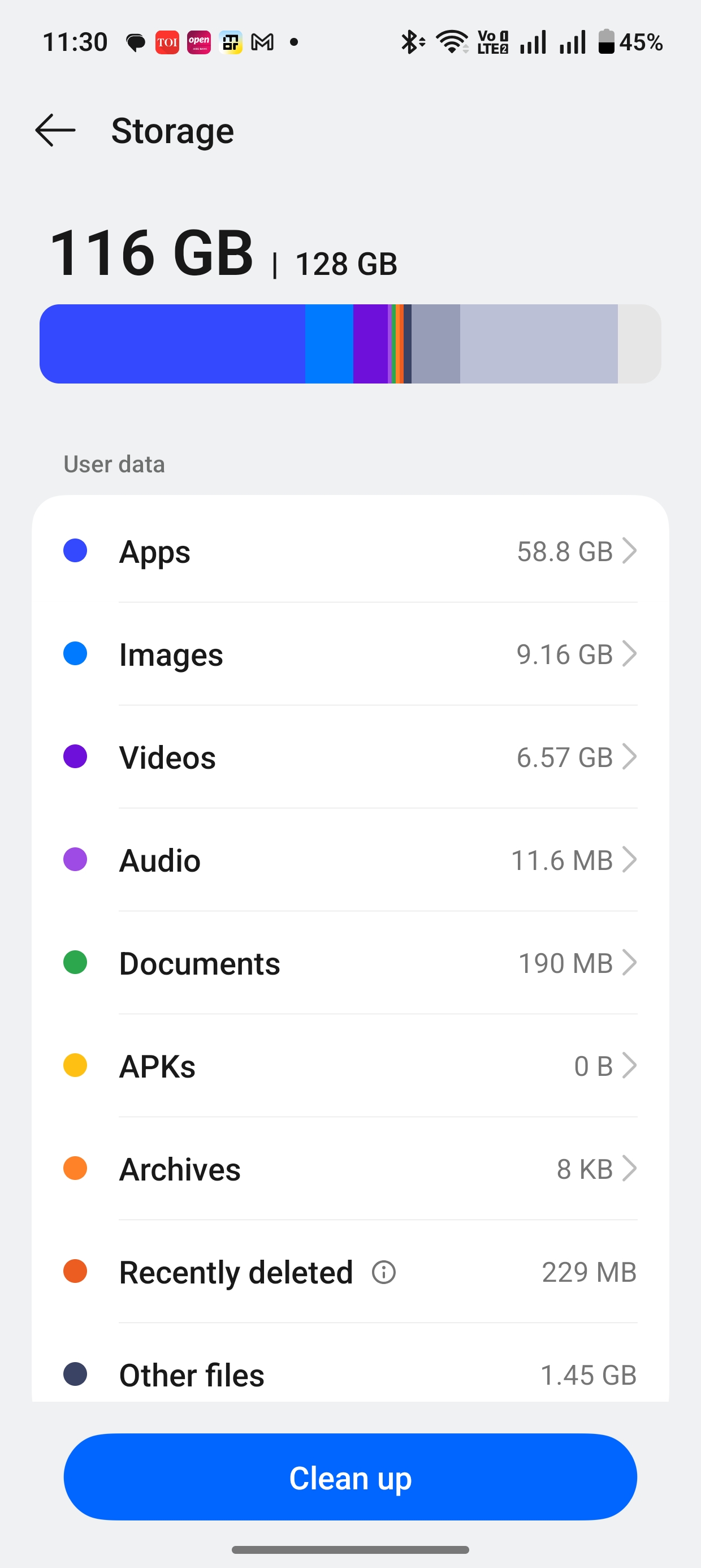
How to Check Which Apps Are Using the Most Storage
If your phone storage is almost full, the first step is to identify which apps are consuming the most space.
Steps to Check Storage Usage on Android
-
Open Settings
-
Tap Storage
-
Select Apps
You will then see details such as:
-
App size
-
User data
-
Cache size
Sorting apps by size makes it easier to identify which apps are using the most storage.
Best Ways to Free Up Storage on Your Phone
There are several effective ways to recover storage space without deleting important files.
Clear App Cache
Clearing cache removes temporary files without deleting your account data.
Steps:
-
Open Settings
-
Tap Apps
-
Select the app
-
Tap Storage
-
Tap Clear Cache
This simple step can free hundreds of megabytes instantly.
Clear App Data (If Necessary)
If an app is using several gigabytes of storage, clearing its data may help.
Steps:
-
Open Settings
-
Go to Apps
-
Select the app
-
Tap Clear Data
Note that this will reset the app and log you out, so you will need to sign in again.
Delete Unused Apps
Many users install apps they rarely use. Examples include:
-
Games
-
Shopping apps
-
Food delivery apps
-
Travel apps
Removing unused apps can free several gigabytes of storage.
Disable Automatic Downloads
Some apps automatically download content.
For example:
YouTube
Profile → Settings → Downloads → Disable Smart Downloads
Netflix
App Settings → Downloads → Disable Smart Downloads
Disabling these options helps prevent unnecessary storage usage.
Use Lite Versions of Apps
Lite apps are designed to use less storage and fewer resources.
Examples include:
-
Instagram Lite
-
Facebook Lite
-
Messenger Lite
These apps can reduce storage usage by up to 70–80 percent compared to the full versions.
Additional Tips to Manage Mobile Storage Efficiently
Use Cloud Storage for Photos
Instead of storing photos locally, you can upload them to cloud storage services such as:
-
Google Photos
-
Google Drive
-
Microsoft OneDrive
After backing up photos, you can remove local copies to free storage.
Use Built-In Storage Cleanup Tools
Most Android smartphones include storage cleanup tools that can:
-
Remove duplicate files
-
Delete temporary files
-
Identify large files
Running these tools regularly helps recover several gigabytes of storage.
Restart Your Phone Periodically
Restarting your phone clears temporary system files and improves performance. Doing this once a week can help keep storage usage under control.
Typical Storage Usage on a 128 GB Smartphone
Here is a common storage distribution on many smartphones:
| Category | Average Storage Usage |
|---|---|
| Apps | 40–60 GB |
| Photos | 5–20 GB |
| Videos | 5–15 GB |
| Cache & Temporary Files | 5–10 GB |
| System Files | 10–15 GB |
As seen above, apps often occupy the largest portion of storage.
Final Thoughts
If your phone storage fills up quickly, apps are usually the main reason rather than photos or videos. Social media and streaming apps continuously store cache files, preview media, and temporary data to improve performance.
By regularly clearing cache, deleting unused apps, and managing download settings, you can recover a significant amount of storage space and keep your smartphone running smoothly.
Discussion
Which app is using the most storage on your phone?
Have you noticed apps like Instagram or YouTube using more than 1 GB of space?
How often do you clear app cache to free storage?
Share your experience and tips with the community.

Quote from engager on March 18, 2026, 10:07 pmApps often consume a large amount of storage on mobile phones, especially OTT and social media apps. Over time, these apps accumulate cached files that can take up significant space.
It’s a good practice to regularly clear the cache or app data to free up storage. In most cases, clearing the cache does not remove any important personal data, but it can help improve storage availability and sometimes even improve app performance.
Apps often consume a large amount of storage on mobile phones, especially OTT and social media apps. Over time, these apps accumulate cached files that can take up significant space.
It’s a good practice to regularly clear the cache or app data to free up storage. In most cases, clearing the cache does not remove any important personal data, but it can help improve storage availability and sometimes even improve app performance.