How to Print from Your Mobile Phone: Complete Guide to Printing Documents Using Office Printers
Smartphones have become powerful productivity tools, and printing documents is no longer limited to desktops or laptops. Whether you are in an office, working remotely, or urgently need to print a document, printing from your mobile phone is now simple and widely supported.
In this guide, we explain how to print from mobile, the different ways to connect a printer with your phone, and whether every smartphone supports mobile printing or has limitations.
How to Print from Mobile Phone
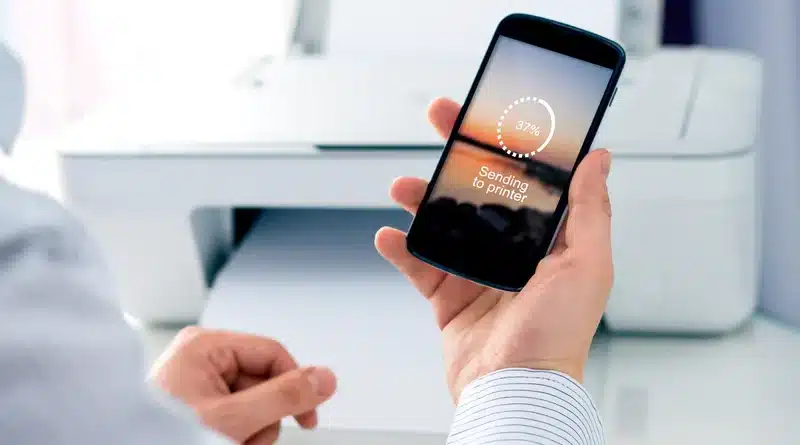
Printing from a mobile phone means sending a print command directly from your smartphone to a printer—wirelessly, via cable, or through cloud services. Both Android and iPhone support mobile printing, but the method depends on the printer type and network setup.
Different Ways to Print Documents from Mobile
1. Print Using Wi-Fi (Same Network Printing)
This is the most common and easiest method.
How it works:
- The printer is connected to office or home Wi-Fi
- Your mobile phone is connected to the same network
- The phone detects the printer automatically
On Android:
- Enable Default Print Service in settings
- Open document → Share → Print → Select printer
On iPhone:
- Uses AirPrint
- Open document → Share → Print → Select printer
✔ Works well for PDFs, Word files, emails, images
✔ Ideal for office printers
2. Print Using Printer Manufacturer Apps
Most office printer brands provide official mobile apps that simplify printing.
Popular examples:
- HP Smart
- Canon PRINT
- Epson iPrint
- Brother iPrint & Scan
These apps allow users to:
- Print documents and photos
- Scan files to mobile
- Check ink and printer status
📌 Best option when auto-detection doesn’t work.
3. Print Using USB Cable (OTG Method)
This method is useful when:
- The printer does not support Wi-Fi
- Office network restrictions block wireless printing
Requirements:
- USB OTG adapter (Android)
- Printer USB cable
- Third-party printing app
⚠️ Only supported on Android devices
⚠️ iPhones do not support USB OTG printing
4. Bluetooth Printing
Some printers (mainly portable or label printers) support Bluetooth printing.
Limitations:
- Not common in large office printers
- Slower compared to Wi-Fi
- Requires dedicated apps
5. Cloud Printing (Enterprise & Office Use)
Many modern offices use cloud printing solutions, where printers are connected to enterprise systems.
Benefits:
- Print from anywhere
- No need to be on the same Wi-Fi
- Secure access control
Common in corporate environments with IT-managed printers.
Can Every Smartphone Connect to a Printer?
Android Phones
✔ Most Android smartphones support printing
✔ USB OTG and Wi-Fi printing supported
✔ Requires Android 8 or newer for best compatibility
iPhones
✔ Supports wireless printing via AirPrint
❌ No USB cable printing
✔ Requires AirPrint-enabled printers
Limitations of Printing from Mobile
While mobile printing is convenient, there are some limitations:
- ❌ Old printers may not support Wi-Fi or AirPrint
- ❌ Corporate Wi-Fi may block printer discovery
- ❌ Advanced print settings are limited on mobile
- ❌ USB printing not supported on iPhone
📌 In office environments, network segmentation (VLANs) or security firewalls may block mobile printing unless configured by IT.
How to Print from Office Printer Using Mobile
To print from an office printer using mobile:
- Confirm printer supports Wi-Fi or cloud printing
- Connect mobile to office network
- Install printer’s official app (recommended)
- Use Share → Print from document
- Select printer and print
If office Wi-Fi is restricted, ask IT team for:
- Printer access permission
- Cloud printing enablement
Final Thoughts
Printing from mobile phones is no longer a challenge. With Wi-Fi printers, manufacturer apps, and cloud printing, users can easily print documents from office printers using mobile devices.
For best results:
- Use Wi-Fi or official printer apps
- Keep printer firmware updated
- Check network restrictions in offices