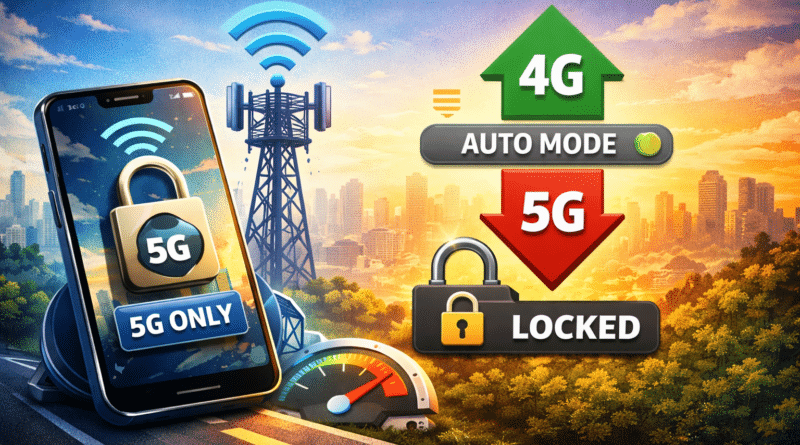
How to Lock Your Mobile Network to 5G Only to Get Unlimited 5G Data
With unlimited 5G data offers from Airtel and Reliance Jio, many users expect consistently high speeds and unrestricted data usage.
However, in real-world usage, your phone often keeps switching between 5G and 4G, depending on location, signal strength, and network load.
This automatic switching can prevent you from fully enjoying unlimited 5G data benefits, especially when your phone falls back to 4G frequently.
In this guide, we explain:
- Why phones switch between 4G and 5G
- How to lock your mobile network to 5G only
- When you should avoid locking 5G
- How to switch back to auto mode safely
- Which phones and operating systems support these settings
Why Does Your Phone Switch Between 4G and 5G?
Even if your plan includes unlimited 5G, your device decides which network to use based on:
- 📍 Signal strength at your location
- 📶 Network congestion
- 🔋 Battery optimization
- 📞 Call stability (voice still relies heavily on LTE/VoLTE)
When 5G signal weakens, your phone automatically shifts to 4G to maintain connectivity. While this improves reliability, it can limit unlimited 5G data usage, as most operators apply unlimited benefits only when connected to 5G.
Why Locking Your Phone to 5G Can Help
Locking your phone to 5G-only mode can be useful when:
- You are in a stable location (home, office, hostel)
- You know 5G coverage is strong
- You want to consume large data (downloads, streaming, hotspot use)
- Your plan offers unlimited 5G data
In such cases, forcing 5G prevents fallback to 4G and helps you fully utilize the unlimited 5G quota.
⚠️ Important Warning Before Locking to 5G
Keeping your phone locked to 5G all the time is NOT recommended.
Possible issues:
- ❌ Poor call quality or call drops
- ❌ No network indoors or during travel
- ❌ Higher battery drain
- ❌ Data disconnects in weak coverage areas
👉 Best practice:
Lock to 5G only when stationary. Keep auto mode enabled while moving.
How to Lock Network to 5G Only (Step-by-Step)
📱 For Android Phones (Most Brands)
Works on many Android phones, but menus vary by brand and OS version.
Steps:
- Open Settings
- Go to Network & Internet / Connections
- Select SIM / Mobile Network
- Tap Preferred network type
- Choose 5G Only (or NR Only)
If “5G Only” is not visible, your phone or firmware may not support it.
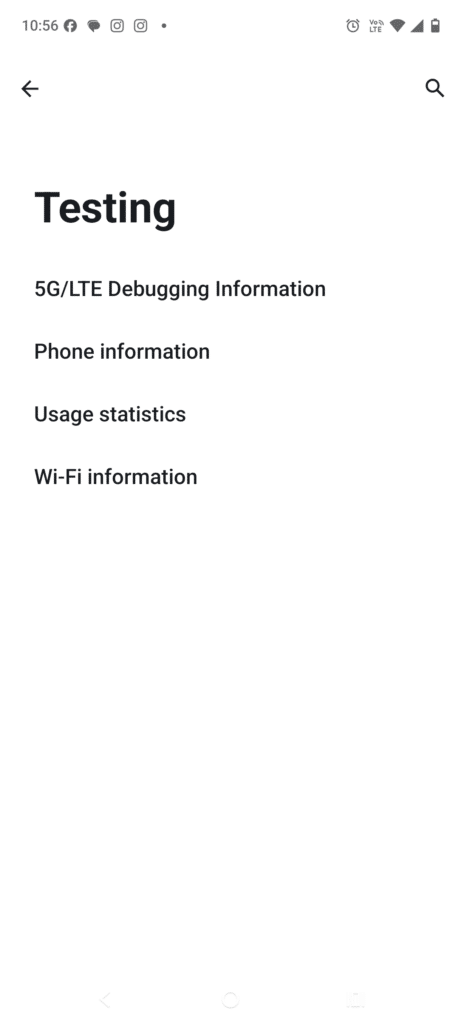
📱 Using Android Hidden Testing Menu (Advanced Users)
This method works on many Android devices:
- Open Dialer
- Dial:
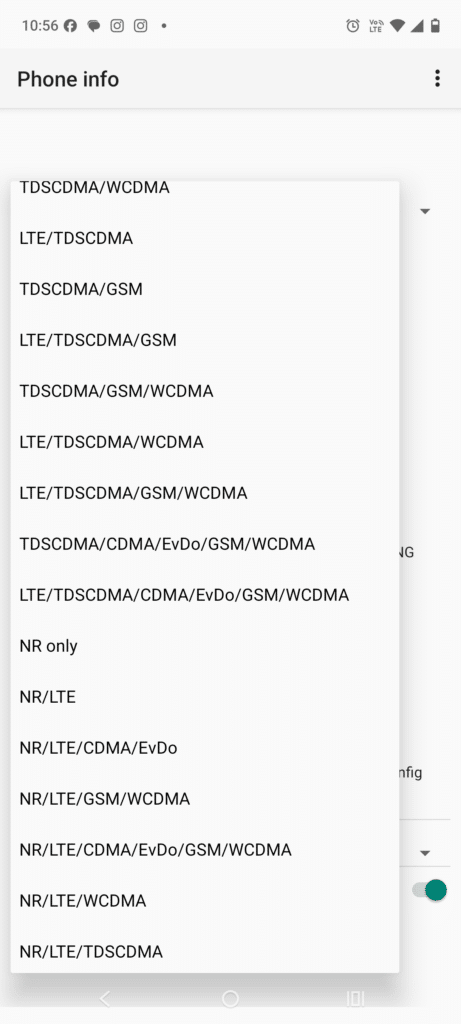
*#*#4636#*#* - Select Phone Information
- Under Set Preferred Network Type
- Choose NR Only or NR/LTE
⚠️ Use this method carefully. Selecting the wrong option may disconnect your network temporarily.
🍎 What About iPhones (iOS)?
Apple does NOT allow true “5G Only” locking.
On iPhones, you can only choose between:
- 5G Auto (recommended by Apple)
- 5G On (prioritizes 5G but still falls back)
- LTE
📌 Apple prioritizes call quality, battery life, and stability — so full 5G lock is intentionally restricted.
How to Switch Back to Auto Mode (Recommended)
Always switch back to Auto / 5G Auto / LTE+5G when:
- Traveling
- Moving between indoor/outdoor locations
- Experiencing call drops or no signal
Steps (Android):
- Network Settings → Preferred Network → 5G/4G Auto
Steps (iPhone):
- Settings → Mobile Data → Voice & Data → 5G Auto
Does Locking 5G Work on All Phones?
✅ Supported
- Many Android phones with Qualcomm or MediaTek 5G chipsets
- Phones with OEM network controls (Samsung, Xiaomi, OnePlus, etc.)
❌ Not Supported
- Most iPhones
- Entry-level Android phones
- Phones with carrier-restricted firmware
Also, network locking options differ by OS version, not just phone brand.
Airtel & Jio: Important Points for Unlimited 5G Users
- Unlimited 5G data works only when connected to 5G
- Falling back to 4G may consume your daily 4G quota
- Locking 5G can help maximize unlimited data, but only in good coverage areas
- Operators may still apply fair usage or misuse policies
Best Usage Strategy (Expert Recommendation)
✔ At home / office → Lock to 5G
✔ Large downloads / streaming → Lock to 5G
✔ Traveling / commuting → Auto mode
✔ Poor signal / call issues → Auto mode
This approach gives the best balance between speed, stability, and call quality.
Final Verdict
Locking your mobile network to 5G only can help you fully utilize unlimited 5G data offers from Airtel and Jio — but it should be used smartly and temporarily.
There is no universal setting that works perfectly for all phones, all locations, and all users.
Understanding when to lock and when to switch back to auto mode is the key to a smooth 5G experience.