
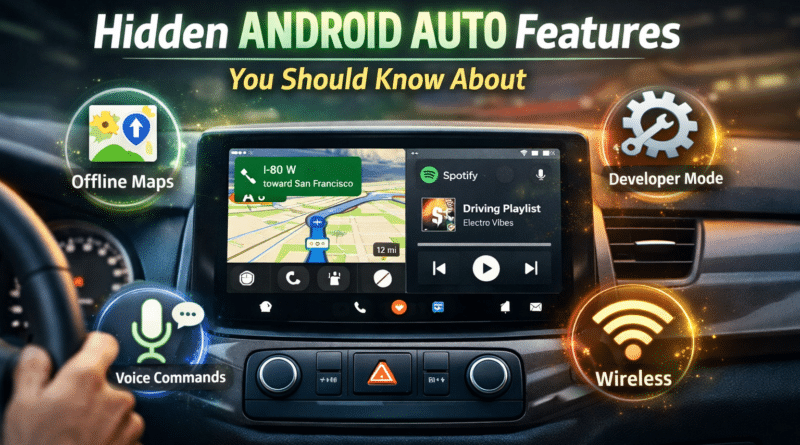
Hidden Android Auto Features Most Users Miss and How to Enable
Android Auto has evolved far beyond simple navigation and music playback. While most drivers use it for Google Maps and Spotify, many powerful features remain hidden or underutilized. These features can improve safety, convenience, and the overall in-car experience—if you know where to find them.
In this guide, we explore lesser-known Android Auto features, explain how to enable them, and highlight why they matter for everyday driving.
1. Android Auto Coolwalk Dashboard (Multi-Tasking Mode)
One of the biggest upgrades to Android Auto is Coolwalk, a redesigned dashboard that allows split-screen multitasking.
What It Does
- Shows navigation, music, and notifications simultaneously
- Reduces the need to switch apps while driving
- Automatically adapts to wide car displays
How to Enable It
- Open Android Auto settings on your phone
- Tap Version number 10 times to unlock Developer Mode
- Go to Developer Settings
- Enable Coolwalk / New UI (if available)
📌 Note: Coolwalk availability depends on car display size and Android Auto version.
Benefits
- Safer driving with fewer screen interactions
- Faster access to essential information
- Cleaner and modern interface
2. Customize Launcher & App Order
Most users don’t realize Android Auto lets you control which apps appear and in what order.
How to Enable
- Open Android Auto settings
- Tap Customize launcher
- Rearrange apps or hide unused ones
Why This Matters
- Keeps distractions to a minimum
- Faster access to frequently used apps
- Improves overall usability
3. Hidden Developer Settings for Power Users
Android Auto includes advanced developer options, usually unnoticed by regular users.
How to Access
- Open Android Auto settings
- Scroll to Version
- Tap it 10 times
- Accept Developer Mode
Useful Hidden Options
- Force Day/Night Mode
- Enable Unknown App Sources
- Debug display resolution issues
⚠️ Only change settings if you understand them—some options are experimental.
4. Voice Control Beyond Navigation
Most drivers use voice commands only for maps, but Google Assistant in Android Auto can do much more.
Things You Can Say
- “Read my WhatsApp messages”
- “Reply to the last message”
- “Play my driving playlist”
- “Call Rahul using speaker”
How to Ensure It Works
- Enable Hey Google on your phone
- Allow microphone permissions for Android Auto
- Set your preferred assistant language
Benefits
- Hands-free communication
- Reduced driver distraction
- Faster responses while driving
5. Offline Maps & Navigation Backup
Network issues can break navigation—but Android Auto supports offline Google Maps.
How to Enable Offline Maps
- Open Google Maps on phone
- Tap your profile → Offline maps
- Download your city or travel route
Why It’s Useful
- Navigation works without mobile data
- Ideal for highways and remote areas
- Faster route recalculation
6. Notification Control (Reduce Distractions)
Android Auto allows selective notification access, which many users ignore.
How to Customize Notifications
- Open Android Auto settings
- Tap Notifications
- Disable alerts from unnecessary apps
Benefits
- Cleaner dashboard
- Less distraction while driving
- Focus on navigation and calls
7. Wireless Android Auto (If Supported)
Many cars support wireless Android Auto, but users still rely on cables.
How to Enable
- Ensure car infotainment supports wireless AA
- Turn on Wi-Fi & Bluetooth
- Pair phone via car’s system
Advantages
- No cables required
- Faster phone connection
- Cleaner car interior
Final Thoughts
Android Auto is far more powerful than it appears at first glance. Features like Coolwalk dashboard, developer options, offline navigation, and advanced voice controls can significantly improve your daily driving experience.
If you haven’t explored these settings yet, you’re likely missing out on safer, smarter, and more convenient in-car functionality.
FAQs
What are hidden features in Android Auto?
Hidden Android Auto features include the Coolwalk split-screen dashboard, developer options, offline Google Maps navigation, advanced voice commands, app launcher customization, and notification control settings.
How do I enable developer mode in Android Auto?
To enable developer mode, open Android Auto settings on your phone and tap the Version number multiple times until developer options are unlocked.
What is Android Auto Coolwalk dashboard?
Coolwalk is Android Auto’s redesigned interface that allows split-screen multitasking, displaying navigation, music controls, and notifications simultaneously for safer driving.
Can Android Auto work without internet?
Yes, Android Auto can work without internet for navigation if offline maps are downloaded in Google Maps beforehand.
Does Android Auto support wireless connection?
Many modern cars support wireless Android Auto using Wi-Fi and Bluetooth, eliminating the need for USB cables, provided the vehicle infotainment system supports it.