
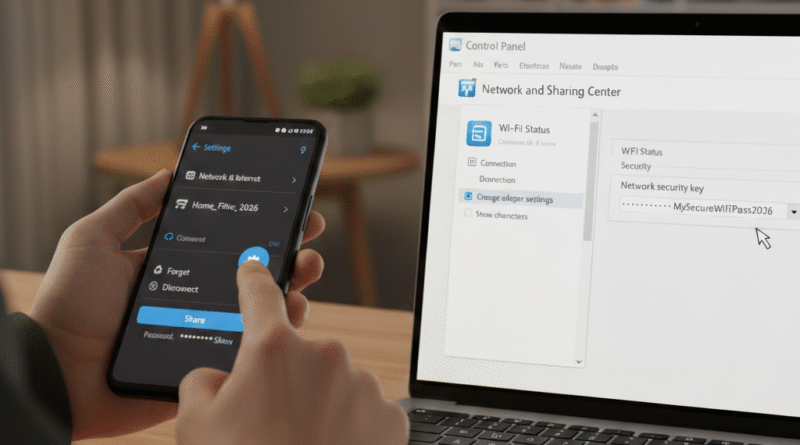
How to Find WiFi Password in Connected Mobile and Laptop – Step by Step Guide
Many times we connect our phone or laptop to a WiFi network and later forget the password. When we need to connect another device, we struggle to remember it.
The good news is – if your mobile or laptop is already connected to WiFi, you can easily find the saved password.
In this guide, we will explain simple and practical methods to check WiFi password on:
- Android mobile
- iPhone
- Windows laptop
- MacBook
All the methods are easy to follow and do not require any technical knowledge.
How to Find WiFi Password on Android Mobile
If you are using an Android phone, you can see the WiFi password without installing any app.
Method 1: Using QR Code (Android 10 and Above)
Most new Android phones allow you to view WiFi password directly.
Steps:
- Open Settings
- Go to Wi-Fi & Network
- Tap on the currently connected WiFi network
- Click on Share
- Authenticate using fingerprint, PIN, or pattern
- A QR code will appear
- Below the QR code, the WiFi password will be visible
This method works on almost all modern Android phones such as Samsung, Xiaomi, OnePlus, Realme, Oppo, Vivo and others.
Method 2: From Saved Networks (Android 12 and Above)
If your phone runs on Android 12 or later:
- Open Settings
- Tap on Network & Internet
- Open Internet / Wi-Fi
- Select the connected network
- Tap on Share
- Verify your identity
- The saved password will be shown
How to Find WiFi Password on iPhone
Earlier iPhones did not allow users to see saved WiFi passwords.
But in newer iOS versions, this option is available.
Steps to View WiFi Password on iPhone
- Open Settings
- Tap on Wi-Fi
- Tap the “i” icon next to the connected network
- Tap on Password
- Authenticate with Face ID or Passcode
- The WiFi password will be displayed on screen
This feature is available in iOS 16 and above.
How to Find WiFi Password on Windows Laptop
If your Windows laptop is already connected to WiFi, you can easily check the password.
Method 1: Using Network Settings
- Press Windows + R
- Type
ncpa.cpl - Press Enter
- Right-click on your WiFi connection
- Click on Status
- Select Wireless Properties
- Go to the Security tab
- Tick Show Characters
Your WiFi password will now be visible.
Method 2: Using Command Prompt
This method helps you find passwords of all WiFi networks saved on your laptop.
Step 1 – Open Command Prompt
- Press the Windows key
- Type CMD
- Open Command Prompt
Step 2 – See List of Saved WiFi Networks
Type this command:
netsh wlan show profile
You will see names of all WiFi networks saved on your system.
Step 3 – Find the Password
Now type:
netsh wlan show profile name="WIFI_NAME" key=clear
Replace WIFI_NAME with your network name.
Under Key Content, you will find the WiFi password.
How to Find WiFi Password on MacBook
MacBook users can also easily view saved WiFi passwords.
Steps:
- Open Keychain Access
- Search for your WiFi network name
- Double-click on it
- Tick Show Password
- Enter your Mac login password
- The WiFi password will be displayed
Important Things to Remember
- You can only view passwords of WiFi networks that are already connected or saved
- It is not possible to find password of an unknown or new WiFi network
- Office or corporate WiFi networks may restrict password visibility for security reasons
- All the methods mentioned above are safe and legal
Conclusion
Forgetting WiFi passwords is a very common problem.
But as you have seen in this guide, it is very easy to recover saved WiFi passwords from your mobile or laptop.
Whether you use Android, iPhone, Windows laptop, or MacBook – there is always a simple way to check the connected WiFi password.
Next time you forget your WiFi password, you don’t need to reset the router. Just follow the steps from this guide and retrieve it within minutes.
Frequently Asked Questions (FAQs)
-
Can I see WiFi password on Android without root?
Yes. Android 10 and above allows you to view saved WiFi passwords without rooting your phone.
-
Can I find WiFi password on Windows laptop?
Yes. You can easily check it through Network Settings or Command Prompt.
-
Is it possible to see WiFi password on iPhone?
Yes. If your iPhone is running iOS 16 or later, you can view saved WiFi passwords directly.
-
Can I find password of a WiFi network I never connected to?
No. You can only see passwords of networks already saved on your device.
-
Do I need any app or software to check WiFi password?
No. All the methods explained in this article work without any third-party app.