How to Secure Your Home Wi-Fi Network: Settings, Risks & Data Protection
Your home Wi-Fi network connects everything—from smartphones and laptops to smart TVs, CCTV cameras, and work-from-home systems. If this network is not properly secured, it becomes an easy target for hackers, exposing your personal data, finances, and privacy.
This guide explains how to secure your home Wi-Fi network, the essential router settings you must configure, what happens if Wi-Fi is left unsecured, and what type of information can be stolen.
Why Securing Your Home Wi-Fi Network Is Critical
A home Wi-Fi network is often assumed to be safe just because it is password protected. In reality, many users continue to use default settings provided by their internet service provider. These default configurations are well known and frequently exploited by cybercriminals.
An unsecured or poorly configured Wi-Fi network can allow unauthorized users to access your internet, monitor your online activity, steal sensitive information, or even take control of connected smart devices. With increasing digital payments, online banking, and remote work, securing Wi-Fi is no longer optional—it is essential.
How Hackers Gain Access to Home Wi-Fi Networks
Hackers usually do not “break in” dramatically; instead, they exploit simple mistakes. Weak Wi-Fi passwords, outdated router firmware, and old security protocols make networks vulnerable. In many cases, attackers sit within range of your Wi-Fi signal and use automated tools to guess passwords or exploit known router flaws.
Publicly known default router IPs, admin usernames, and passwords further increase risk when users never change them.
How to Access Your Wi-Fi Router Admin Panel (Default IP Addresses)
To secure your Wi-Fi network, you first need access to the router’s admin dashboard. This is done through a web browser using the router’s default IP address.
Common Default Router Login IP Addresses
Most telecom and broadband routers use one of the following IPs:
- 192.168.1.1 (Most common – JioFiber, Airtel, TP-Link, D-Link)
- 192.168.0.1 (Common in some fiber and cable routers)
- 192.168.1.254 (Used by certain ISP-provided modems)
- 10.0.0.1 (Some modern or mesh routers)
👉 Enter the IP address in your browser (Chrome, Edge, Firefox) while connected to Wi-Fi.
Default Login Credentials (Must Be Changed)
- Username:
admin - Password:
admin/password/ printed on router label
⚠️ If you are still using default credentials, your network is already at risk.
Essential Router Settings to Secure Your Home Wi-Fi
Change Router Admin Credentials Immediately
The router admin panel controls your entire network. If someone gains access to it, they can change passwords, spy on traffic, or redirect websites. Always change both the username and password to something unique and strong.
Enable Strong Wi-Fi Encryption
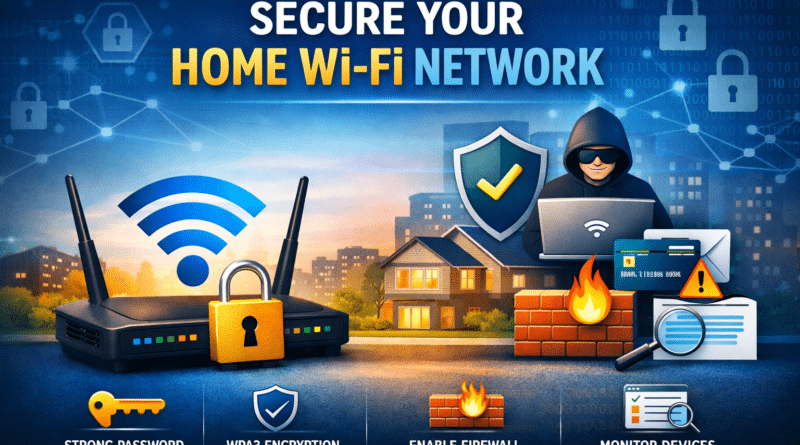
Encryption protects data traveling between your device and the router. Modern routers support WPA3, which offers the highest security. If WPA3 is not available, WPA2-AES is acceptable.
Avoid outdated options like WEP or WPA-TKIP, as they can be cracked within minutes.
Use a Strong and Unique Wi-Fi Password
Your Wi-Fi password should be long and complex. Avoid names, phone numbers, or simple patterns. A strong password drastically reduces the chances of brute-force attacks.
Disable WPS (Wi-Fi Protected Setup)
WPS was designed for convenience but is one of the most exploited features in home routers. Even if your Wi-Fi password is strong, WPS can allow attackers to bypass it.
Disabling WPS significantly improves Wi-Fi security.
Keep Router Firmware Updated
Router manufacturers regularly release firmware updates to fix security vulnerabilities. Running outdated firmware is like using an unlocked door with a broken lock.
Enable automatic updates if available, or manually check for updates every few months.
Additional Security Configurations for Better Protection
Beyond basic settings, you can further strengthen your network by enabling the router firewall, turning off remote management, and creating a separate guest network. Guest networks prevent visitors or smart devices from accessing your main devices and personal data.
Monitoring connected devices regularly also helps detect unauthorized access early.
What Happens If Your Home Wi-Fi Is Not Secured?
An unsecured Wi-Fi network can lead to serious consequences. Hackers may steal your personal data, misuse your internet connection for illegal activities, or spy on your online behavior. In some cases, compromised networks are used to launch cyber attacks on others, which can result in legal trouble for the owner of the connection.
What Information Can Be Stolen from an Unsecured Wi-Fi Network?
If attackers gain access to your Wi-Fi, they may steal:
- Online account usernames and passwords
- Banking and UPI transaction details
- Emails, messages, and personal files
- Office or work-from-home data
- Cloud storage access
- CCTV camera feeds and smart device controls
This information can be used for financial fraud, identity theft, or long-term surveillance.
Best Practices to Maintain Long-Term Wi-Fi Security
Wi-Fi security is not a one-time task. Regularly checking connected devices, updating router firmware, and reviewing security settings keeps your network protected over time. Educating family members about safe Wi-Fi usage also plays a key role.
Final Thoughts
Your home Wi-Fi network is the foundation of your digital life. A few simple configuration changes—many of which take less than 15 minutes—can prevent serious cyber threats. By securing your router admin access, enabling strong encryption, and keeping software updated, you can protect your data, privacy, and peace of mind.